
Assigning Programs
Once you’ve built a program, assign it to athletes so they can follow it in IronLedger.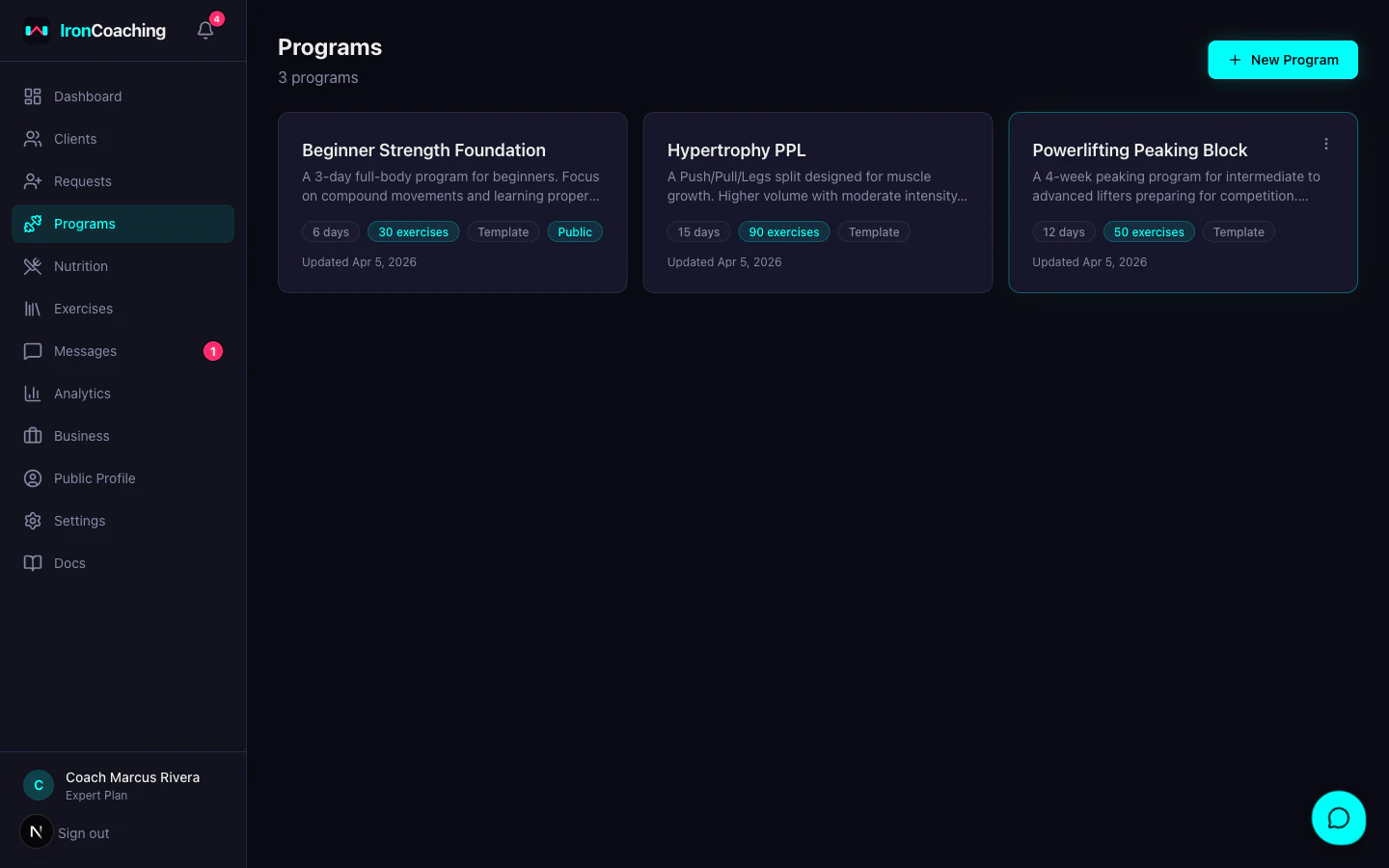
How to Assign
- Go to Dashboard > Clients
- Click on an athlete’s name to open their profile
- Click Assign Program
- Select the program from your list
- Optionally set start and end dates
- Add any notes for the athlete
What Happens Next
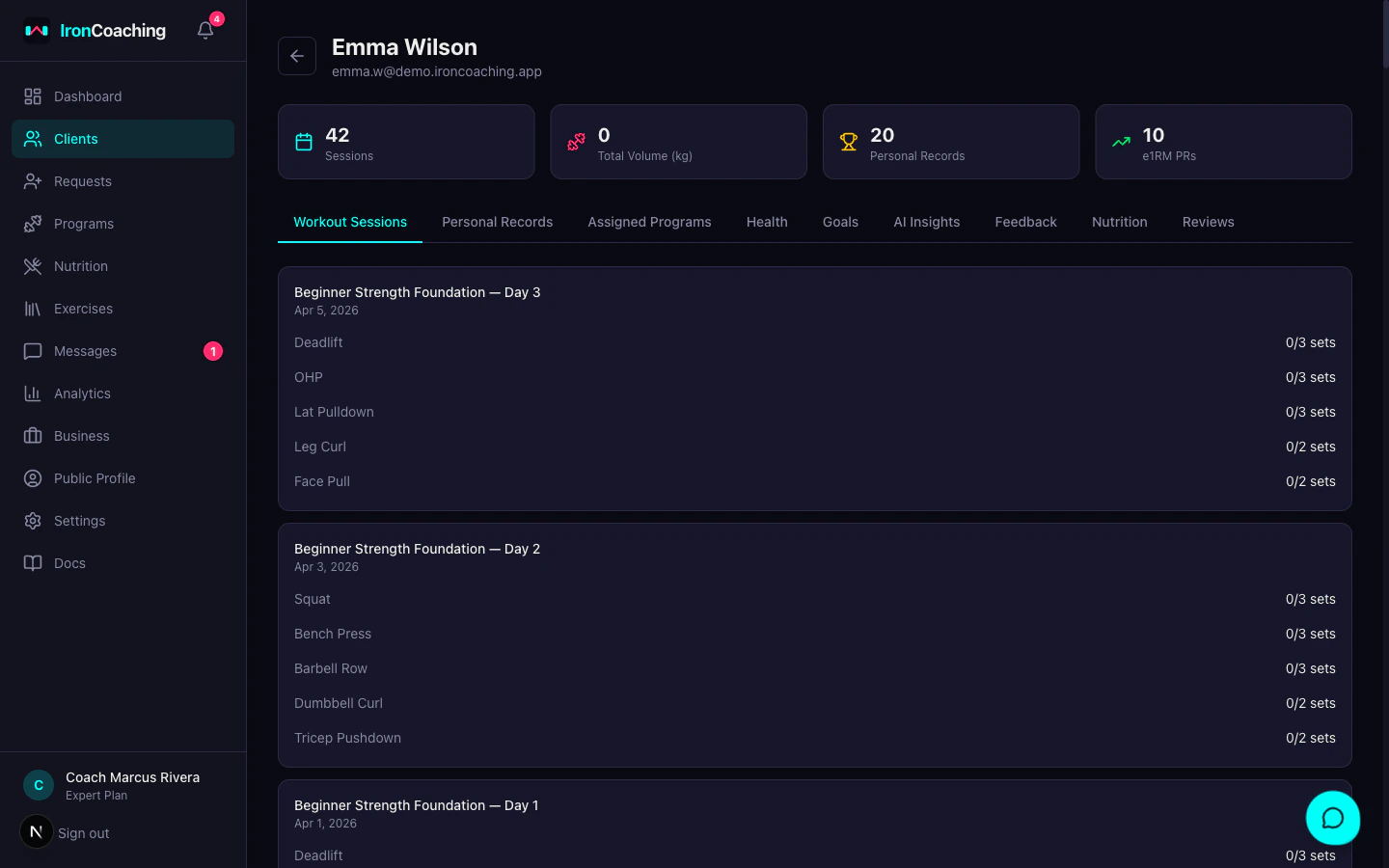
- The program appears in the athlete’s IronLedger app under their programs list
- The athlete can start logging workouts against the program
- You’ll see their progress in real-time on your dashboard
Notifications
When you assign a program — or update an existing assignment — the athlete is notified automatically:- In-app notification — appears in the athlete’s IronLedger notification center, showing your name and the program name
- Email — sent to the athlete’s registered email address with the same details
Assignment Status
Each assignment has a status:| Status | Description |
|---|---|
| Active | Currently assigned and in use |
| Completed | Athlete finished the program |
| Replaced | Superseded by a newer program |
Multiple Programs
Athletes can have multiple active programs. For example:- A main strength program (4 days/week)
- An accessory program (2 days/week)
- A mobility routine
Replacing Programs
When you assign a new program, the previous one is automatically marked as “replaced.” The athlete’s workout history from the old program is preserved.Assigning programs requires Pro plan or higher. Basic plan coaches can build programs but need to upgrade to assign them.