
Video Feedback
Expert plan coaches can send and receive video messages with timestamped coaching cues.How It Works
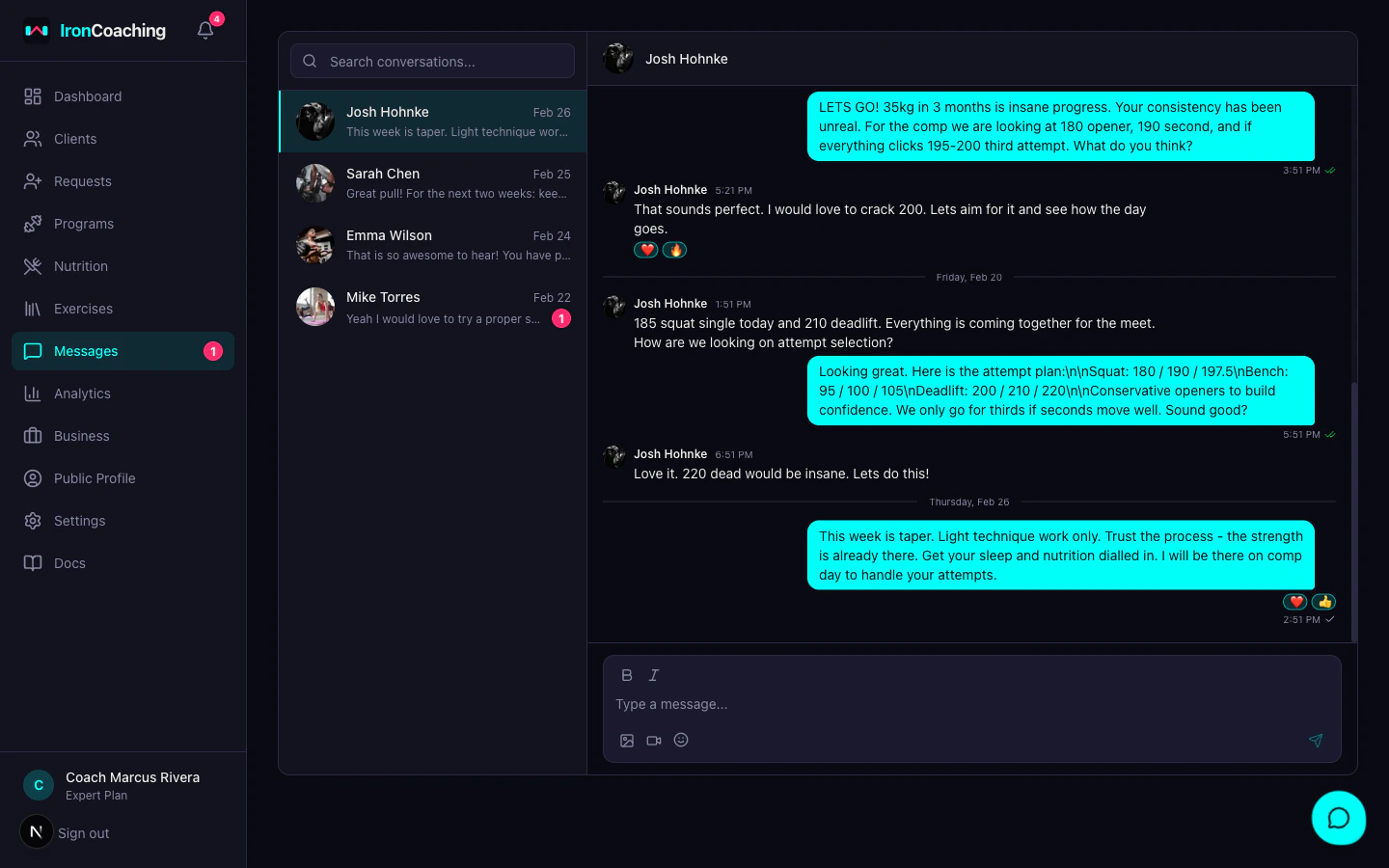
- Open a conversation in Dashboard > Messages
- Click the video upload button
- Select a video file from your device
- The video is uploaded and processed by Mux
- Once ready, it appears in the chat with a video player
Timestamped Annotations
Add coaching cues to specific moments in a video:- Play the video to the moment you want to annotate
- Click Add Annotation
- Type your coaching cue (e.g., “Knees are caving — focus on pushing them out”)
- The annotation is saved at the current timestamp
Video Specs
- Max upload size — depends on your connection (Mux handles large files)
- Supported formats — MP4, MOV, WebM, and most common video formats
- Processing time — typically 30-60 seconds after upload
- Playback — adaptive streaming (adjusts quality to the viewer’s connection)
Auto-Transcription & Chapters
All video feedback is automatically transcribed with timestamped segments. AI-generated chapters help navigate longer videos. See Video Transcription & Chapters for details.Trimming Videos
Both messaging videos and per-set form-check videos support non-destructive trimming. Open the video, click the trim icon, drag the start and end handles to the moment that matters, and save. The original asset is preserved — you can re-trim or revert any time without re-uploading. The same trim editor is available on weekly review uploads.File Limits
- Max upload size — 300MB per video
- Supported formats — MP4, MOV, WebM
- Unsupported formats — a clear error message is shown if you select an unsupported file type or exceed the size limit
Use Cases
- Form checks on compound lifts
- Technique coaching for Olympic lifts
- Movement assessments
- Progress comparison (athlete sends videos over time)
Video feedback requires the Expert plan ($79/mo). Videos are processed and hosted by Mux.